Features
Hundreds of images. Minutes, not hours.
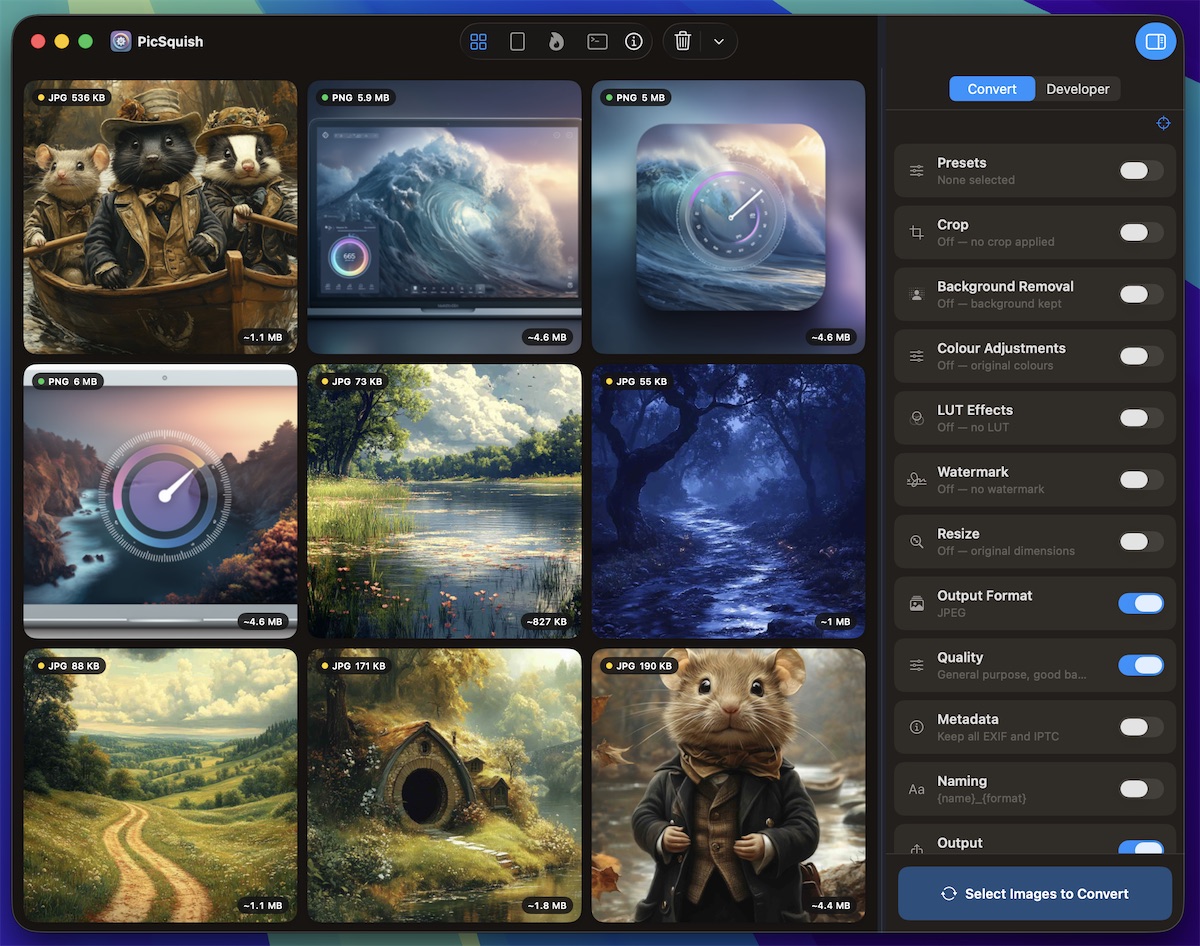
Import a folder, set your preferences, and let PicSquish work through the lot — with live progress tracking, pause and resume, and a full completion report.
How It Works
Import
Drag a folder onto PicSquish, or use File > Open Folder (Cmd/Ctrl+Shift+O).
Configure
Choose your output format, quality, and any adjustments.
Convert
Click Convert (Cmd/Ctrl+E) and PicSquish processes everything in parallel. You can pause, resume, or cancel at any time.
If an individual image fails — a corrupt file, an unsupported edge case — PicSquish skips it and carries on with the rest. No batch-killing errors.
Live Progress
Whilst a batch is running, PicSquish shows you everything you need at a glance.
42 / 128
Images converted
2:34
Time elapsed
~5:10
Estimated remaining
68 MB
Total size saved
Completion Report
When the batch finishes, PicSquish gives you a per-image breakdown: original size, output size, compression ratio, and any issues. Everything you need to verify the results without opening individual files.
Performance
PicSquish processes multiple images concurrently, using configurable parallelism to make the most of your hardware. The memory-efficient streaming pipeline keeps only 1–2 images in memory at a time, so even large batches don’t slow your machine to a crawl.
Batch processing is included with the one-time purchase.